There is always a client that pushes you to find solutions to problems you didn’t know existed. In this particular instance I had a customer that didn’t like the fact that Email Templates sent from Salesforce came across in email clients as fairly “skinny.” The body of the email was 550 pixels wide. With a bit of experimentation I found you could actually make the body of an email template wider by modifying the template via the API using the Data Loader. This addresses a common complaint that emails sent from Salesforce look centered or centered justified. If you widen the email template, it helps makes the email look left justified. There might be other attributes that can be modified, but in this example will go for the width of the email.
First off you have to be using Enterprise Edition or higher to use the Data Loader (as it requires the API). I’ve got quite a few tutorials out on our website to learn the basics of the Data Loader, so we’ll jump right into the steps on how to make the modification.
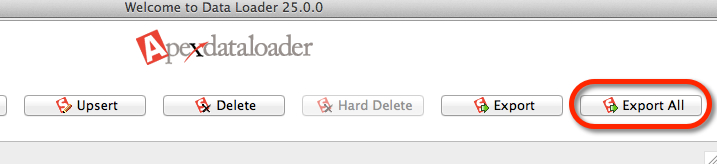
Once logged into the Data Loader, do an “Export All” command
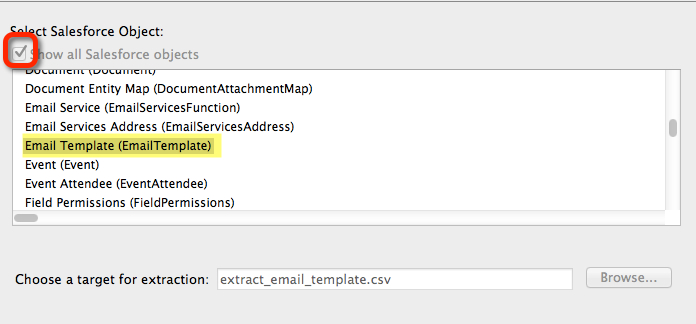
Then make sure you click the button to “Show All Salesforce Objects” so you can find and select the Email Template object, choose your export destination, then click “Next.”
On Step 3 of the wizard, click the button “Select All Fields,” then click the “Finish” button.
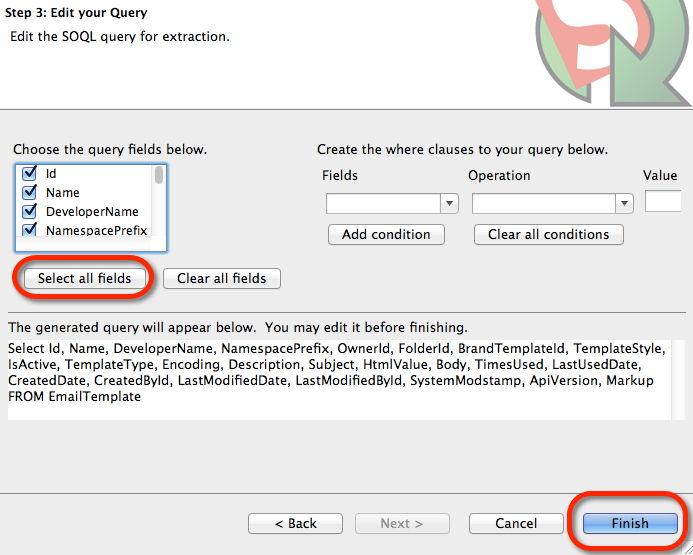
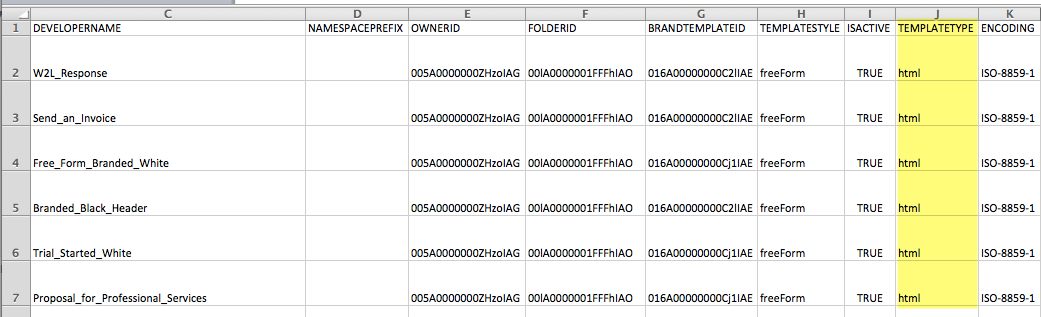
Open your export file in Excel. There is a field (column) called TEMPLATETYPE. That column will show you which of your email templates are HTML.
The field that we want to modify is the column called HTMLVALUE.
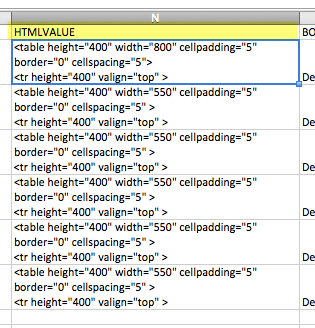
In that field you’ll see values that define the email as in the example below. You can modify the “width” attribute in the HTML to make your template wider:
|
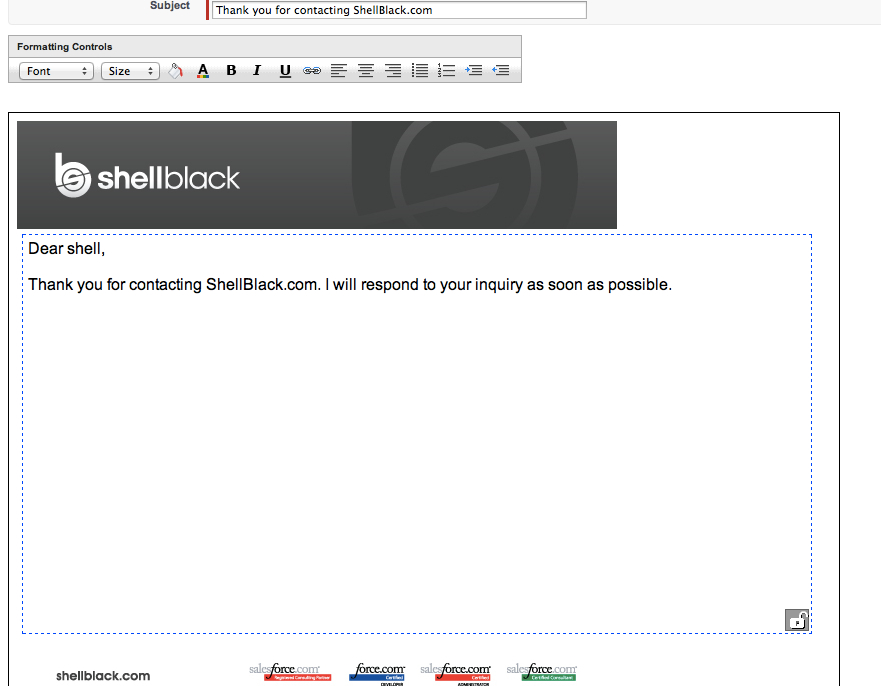
Once you modify that HTML tag, you can use the Data Loader to update the template with the new width value. In my test example I made the width=”800″. This is what the template looks like in the email editor in Salesforce. To give you some perspective that Header image is 600 pixels wide – notice that the text is extending past the header image?
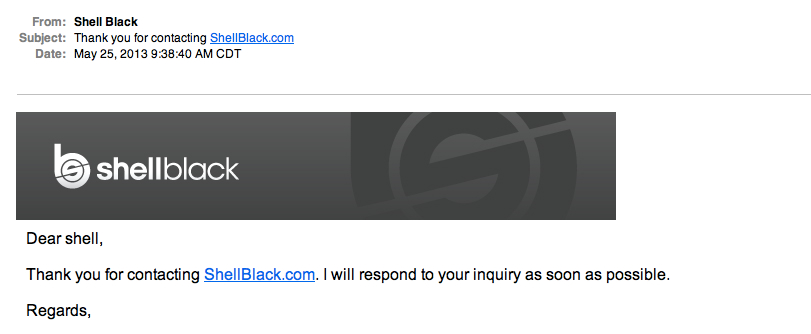
Here is what the email looked like inside an email client (Mac Mail). Notice the text is extending beyond the 600 pixel header image.
|